UI Consoles
This area describes the basic user interface of the CenterScape web site. Terms will be defined here referenced throughout the document.
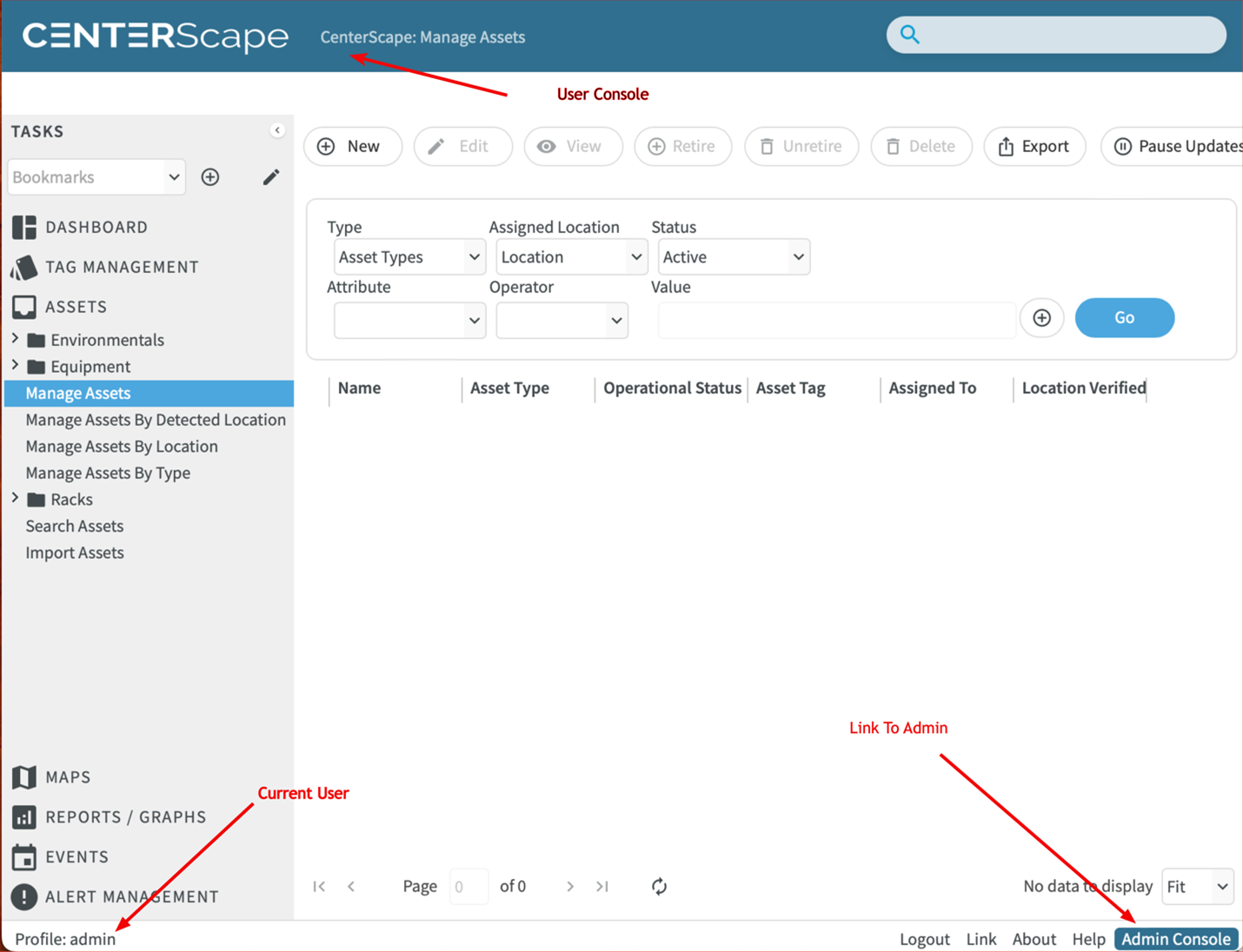
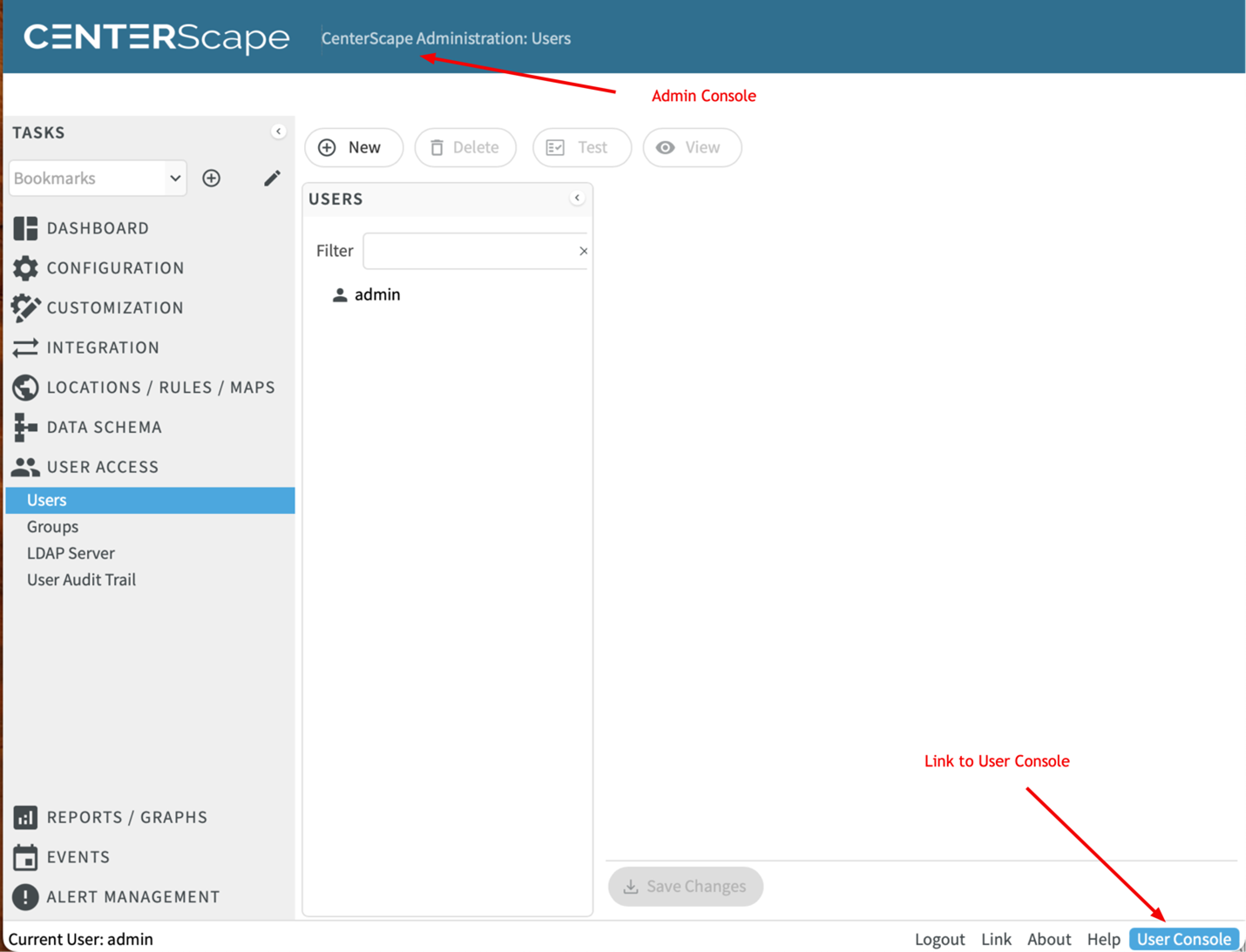
CenterScape has two different “consoles”. The first one presented at initial login to CenterScape as the “admin” user is the Admin Console which manages monitors and reports on the infrastructure needed establish management over assets and sensors. The second console is the User Console which is used to manage, monitor and reports sensors and assets tracked and monitored by CenterScape.
Admin Console
The admin console has a list of menu items in the left hand context menu that is different from the User Console. Its Dashboard is designed to monitor infrastructure and the settings in the admin console generally are system wide on the application. Besides the different menu items in the console menu, the admin console will have a label “CenterScape Administration:” which will indicate that the user is in the admin console. On the bottom left a link to the User Console will be available to switch Consoles.
Note: It is very useful to open the user console in a new window or new tab as both consoles can be open at the same time.
User Console
The User Console can be accessed by clicking on the User Console link in the admin console or may appear if it is the last console used by the current log in or if a user does not have admin console access. The user console header will not say Administration on it and the link on the bottom right side will be a link to the admin console instead of the user console. Users without admin console access will not see the link to the admin console. On the bottom left all users besides the default admin user can change their password (if not LDAP) and user preferences by clicking on their username.